To facilitate convenience for customers who are members of the old version of the Singha Online website, allowing easy and quick access and placing orders on the new website version, the Singha Online team has imported existing member data to the new website version. Customers simply need to verify their identity and sign in to use the service, and they can immediately place orders on the website without having to fill out all the information to register as a new member.
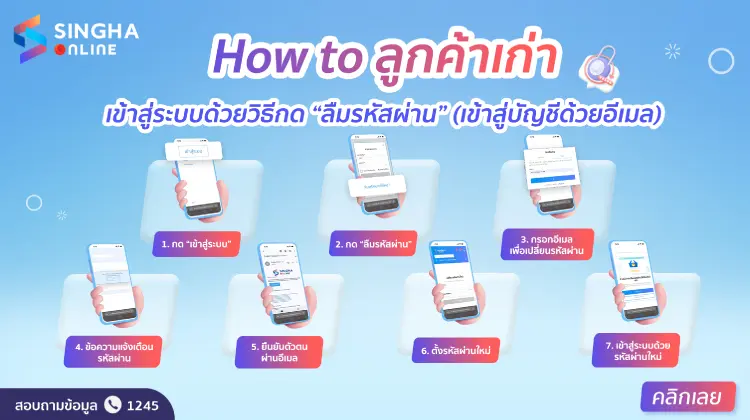
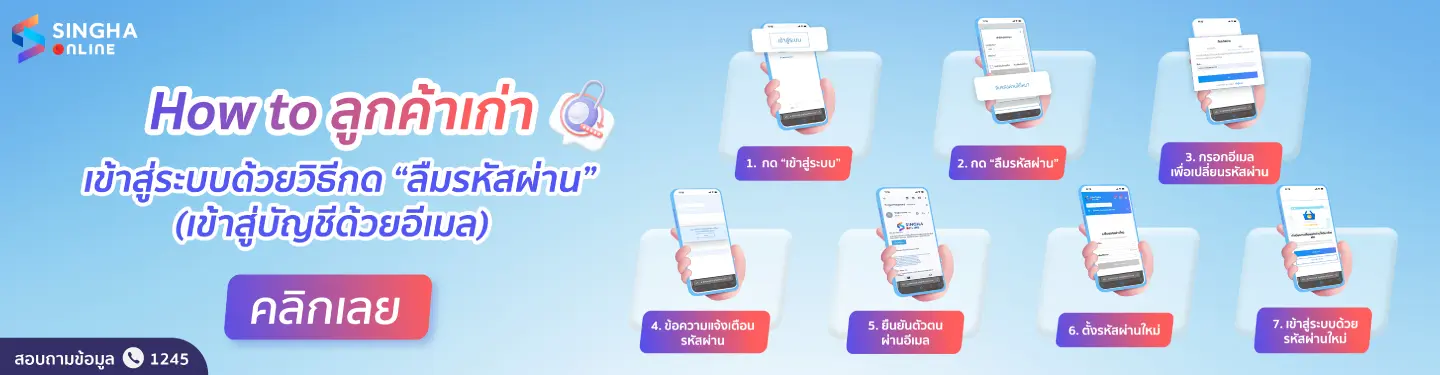
Another way for existing customers who used an email account to register for membership on the Singha Online website to verify their identity on the new website version is by clicking “Forgot Password” and setting a new password, as follows:
1. Select “Main Menu” (Hamburger menu) at the top right corner.
2. Click the “Sign In” button
3. Click the Email tab, then select “Forgot Password?”
4. On the Forgot Password page, enter the email account used for membership on the old website version and click “Send”
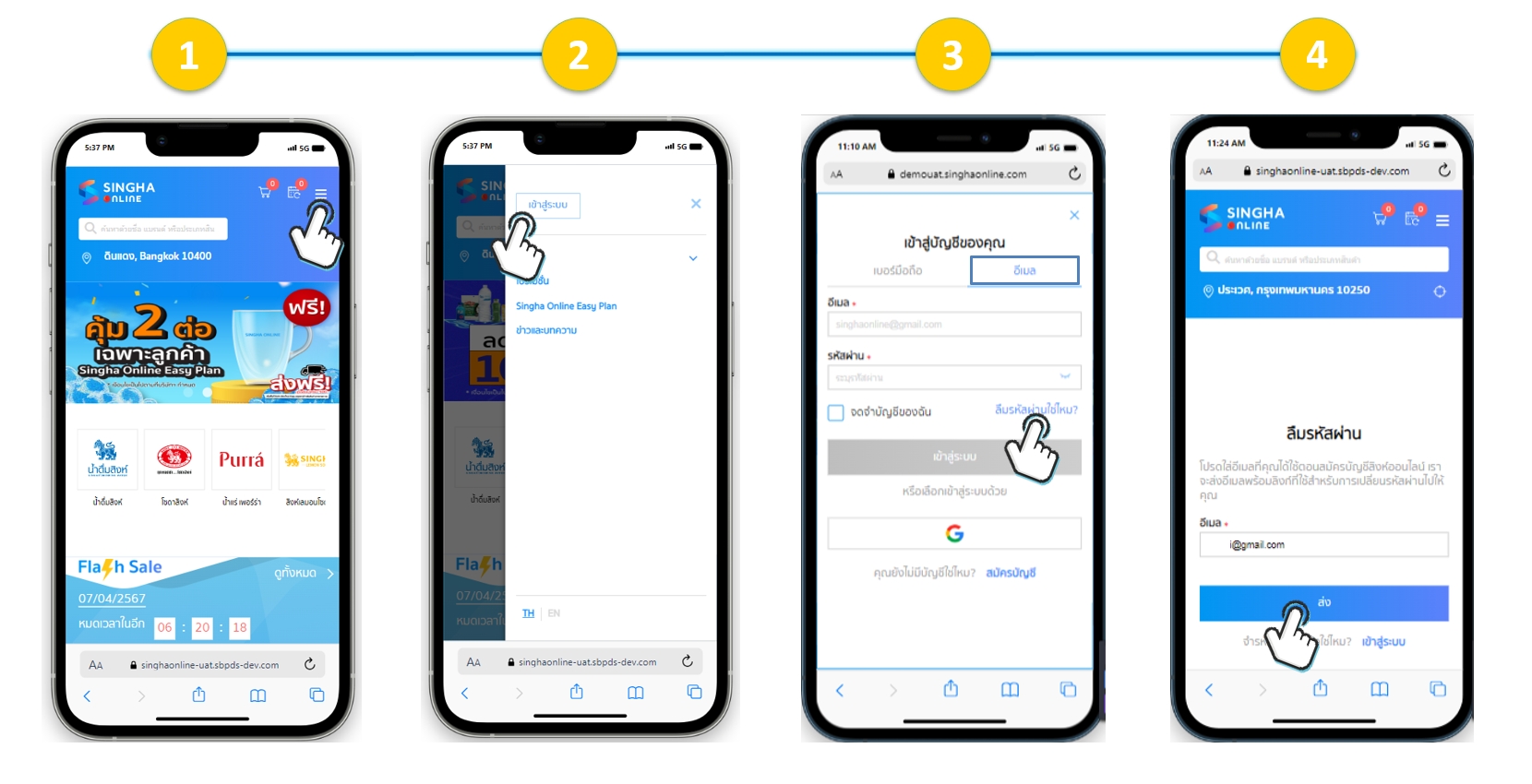
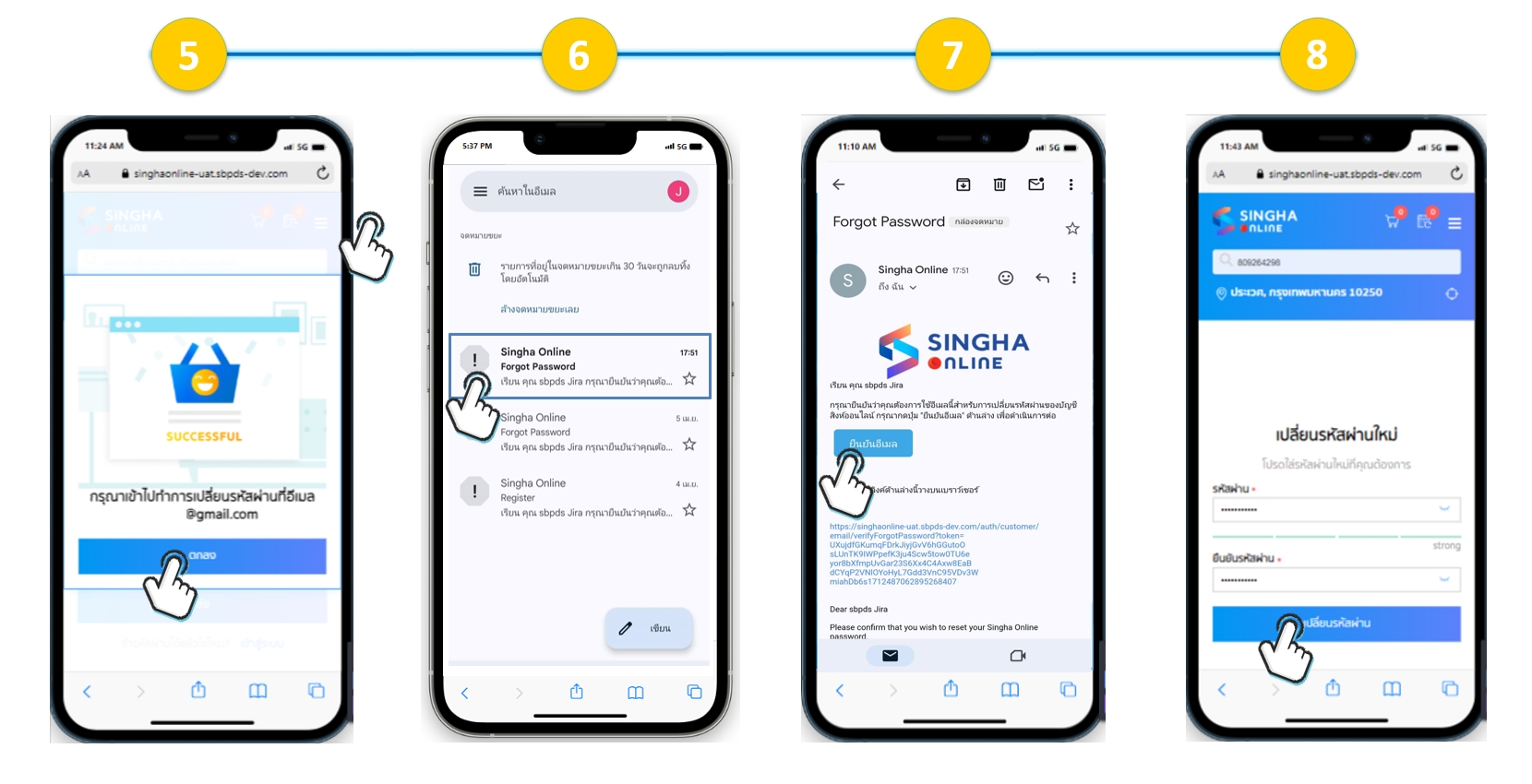
5. The system will notify you to change the password for the email account used for registration
6. Check your email for the Forgot Password email (in the inbox or junk folder)
7. Click the Confirm Email button or copy/paste the confirmation link into a browser to verify your identity
8. The “Change New Password” page will appear. Enter the password and confirm password fields according to the system requirements, then click the “Change New Password” button.
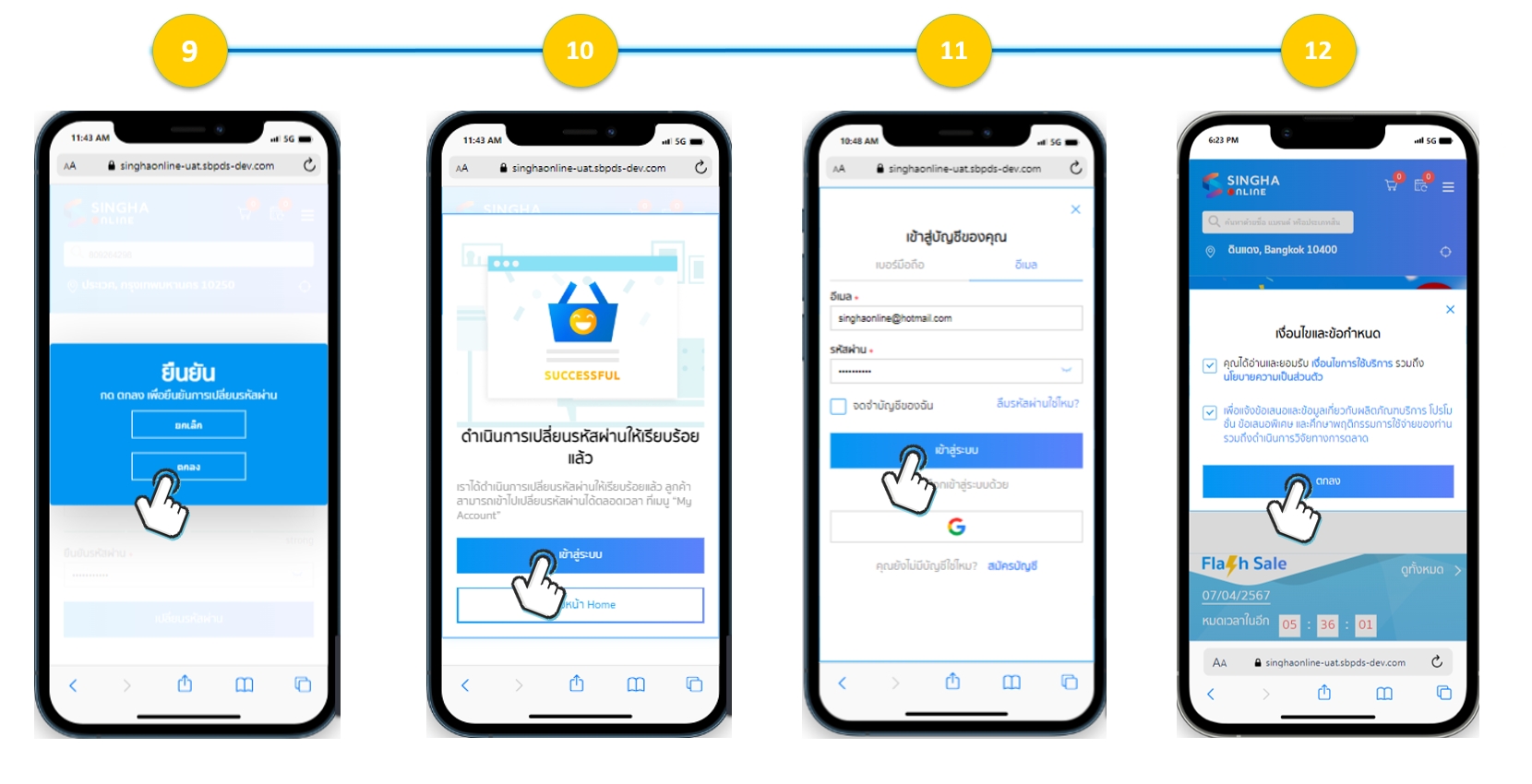
9. Click “OK” to confirm the password change
10. The system will display the successful password change page. You can click the “Sign In” button or go back to the Home page.
11. If choosing to sign in on the email tab, enter your email account and password, then click the “Sign In” button.
12. The website's main page will be displayed. Click to accept the terms and privacy policy upon your first sign-in. After that, you can select and purchase products immediately.